 HeroBytes
How to export an HTML table to Excel, with the numbers still being numbers.
There are three ways to get a table from a web page into a spreadsheet. Each one works until it does not: decimal commas, merged cells, data grids built with JavaScript and tables split across pages are where they break. Here is what to expect from each, so you pick the right one in ten seconds.
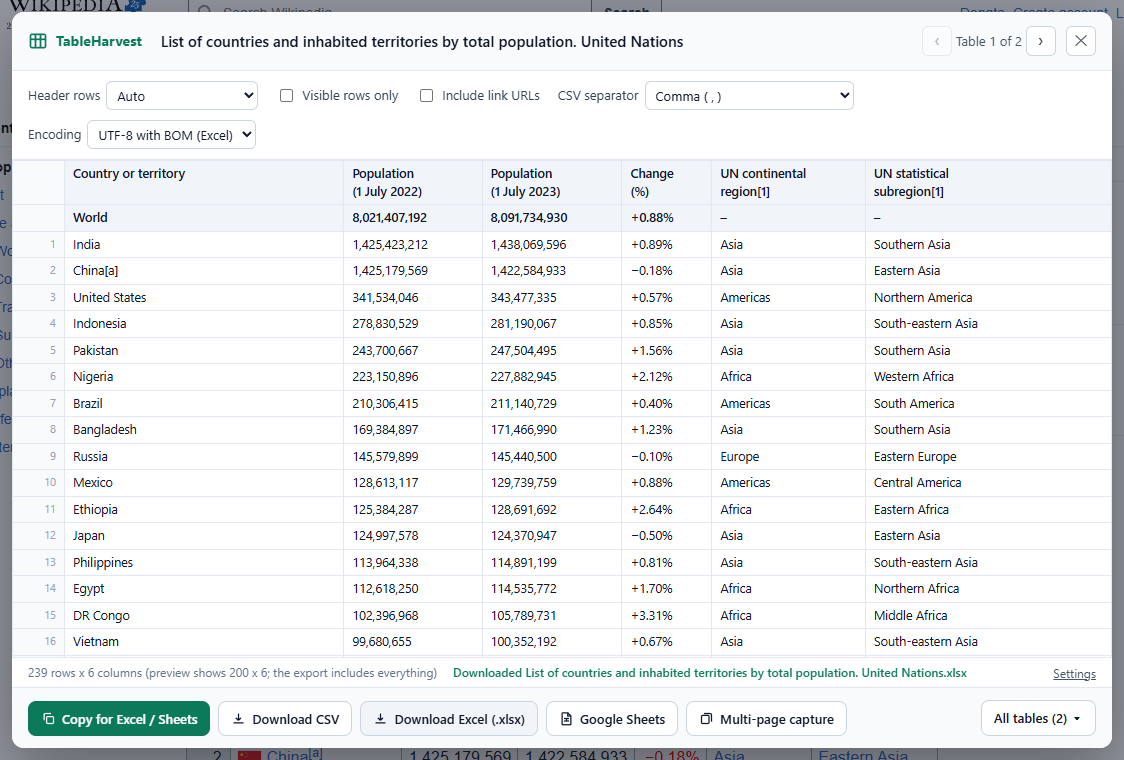
1. Select, copy, paste
The fastest way, and fine for a small, plain table.
- Drag the mouse from the first cell to the last one and press Ctrl+C.
- In Excel or Google Sheets, click a cell and press Ctrl+V.
Where it breaks. The browser copies the table as HTML and as plain text, and the spreadsheet decides what to do with each cell:
- Numbers become text in Spanish, Portuguese, German or French Excel. A page that shows 1,425.50 is read with the comma as decimal separator and the point as thousands separator, so the cell ends up as text, aligned to the left, and
SUMignores it. The reverse happens with 1.425,50 in English Excel. The fix by hand is Data > Text to Columns or aVALUE(SUBSTITUTE(...))formula on every column. - Merged cells shift the columns. A header spanning three columns pastes as one cell and everything below moves left.
- Footnotes and symbols come along. [1], the typographic minus sign, non-breaking spaces and "+0.88%" all turn a number into text, and in Google Sheets a cell starting with
+or=becomes a formula. - Data grids are not tables. Many admin panels and dashboards draw rows with
<div>elements. Selecting them copies a wall of text, one value per line.
2. Excel: Data > Get Data > From Web
Built into Excel for Windows. Good for public pages you want to refresh later.
- In Excel, Data > Get Data > From Other Sources > From Web (on older versions, Data > From Web), paste the page address and click OK.
- The Navigator lists the tables Excel found. Pick one, check the preview and click Load.
- Later, Data > Refresh All downloads the table again.
Where it breaks.
- Pages behind a login, or built with JavaScript, show no tables. Excel downloads the raw page from its own connection: your bank, your CRM, your admin panel and most dashboards return either a login page or an empty shell.
- Locale again. Power Query guesses the number format from the page and from your Windows settings; a column with mixed formats is often typed as text and has to be fixed in the query editor.
- Not on the Mac version of Excel (limited), not in Google Sheets. Sheets has
=IMPORTHTML("url","table",1), with the same login and JavaScript limits.
3. A browser extension: TableHarvest
Reads the table as your browser shows it, after login, after the JavaScript ran, and writes each number with its real value.
- Add TableHarvest to Chrome (also works in Edge and other Chromium browsers).
- On the page with the table, click the TableHarvest icon, or right-click the table and choose Export this table. Every table on the page gets an Export badge.
- Check the preview: the exact rows and columns you will get, header rows detected (you can override them), optionally only the visible rows or with link URLs.
- Click Copy for Excel / Sheets and paste with Ctrl+V, or Download CSV with the separator and encoding your Excel expects (comma or semicolon; UTF-8 with BOM, UTF-16 or Windows-1252).
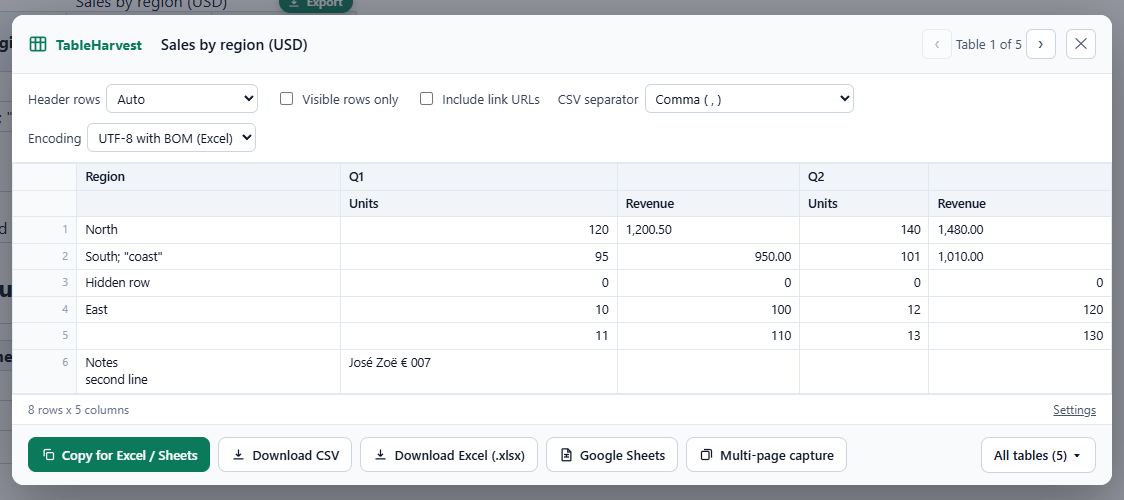
SUM. Merged cells are laid out correctly, footnotes and odd symbols are cleaned, and cells that would become formulas are neutralised.Where it breaks. Virtualised grids (which only render the rows on screen) export the rows currently rendered. Tables split across pages (page 1, 2, 3...) need the Pro multi-page capture, which collects them into one export. Excel files (.xlsx) with frozen header and filters, all tables of a page at once and the Google Sheets export are also Pro features; copying and CSV are free and unlimited.
Which one should I use?
| Copy and paste | Excel From Web | TableHarvest | |
|---|---|---|---|
| Small public table, English locale | Fine | Fine | Fine |
| Spanish, Portuguese, German or French Excel | Numbers become text | Often needs fixing | Numbers stay numbers |
| Page behind a login or built with JavaScript | Works, if it is a real table | No table found | Works |
| Merged cells, footnotes, symbols | Columns shift, text cells | Depends | Handled |
| Data grids (div-based) | Wall of text | No table found | Works |
| Refresh automatically later | No | Yes | No |
| Paginated tables into one file | No | No | Pro |