 HeroBytes
Any web table, straight into your spreadsheet.
TableHarvest copies or downloads any table on a web page to Excel, CSV or Google Sheets in one click. Merged cells, data grids and paginated tables included. The file is built inside your browser; nothing is uploaded anywhere.
Free on the Chrome Web Store; also works in Edge and other Chromium browsers. New here? Read how to export an HTML table to Excel.
Everything in the free version
Unlimited tables, unlimited exports. No account.
Finds every table
Regular HTML tables, div-based data grids (React, Angular, MUI), CSS tables and tables inside frames.
Paste as a real grid
Copy for Excel or Google Sheets: Ctrl+V lands in cells, with real numbers, in any spreadsheet language.
CSV your Excel understands
Comma or semicolon separator, UTF-8 with BOM, UTF-16 or Windows-1252. Spanish, Portuguese, German and French Excel open it correctly.
Merged cells, done right
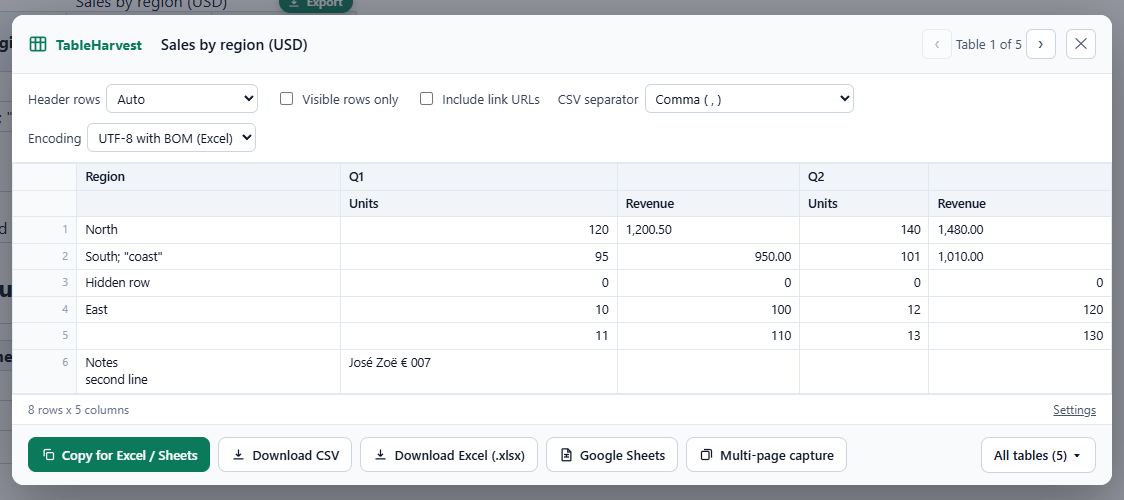
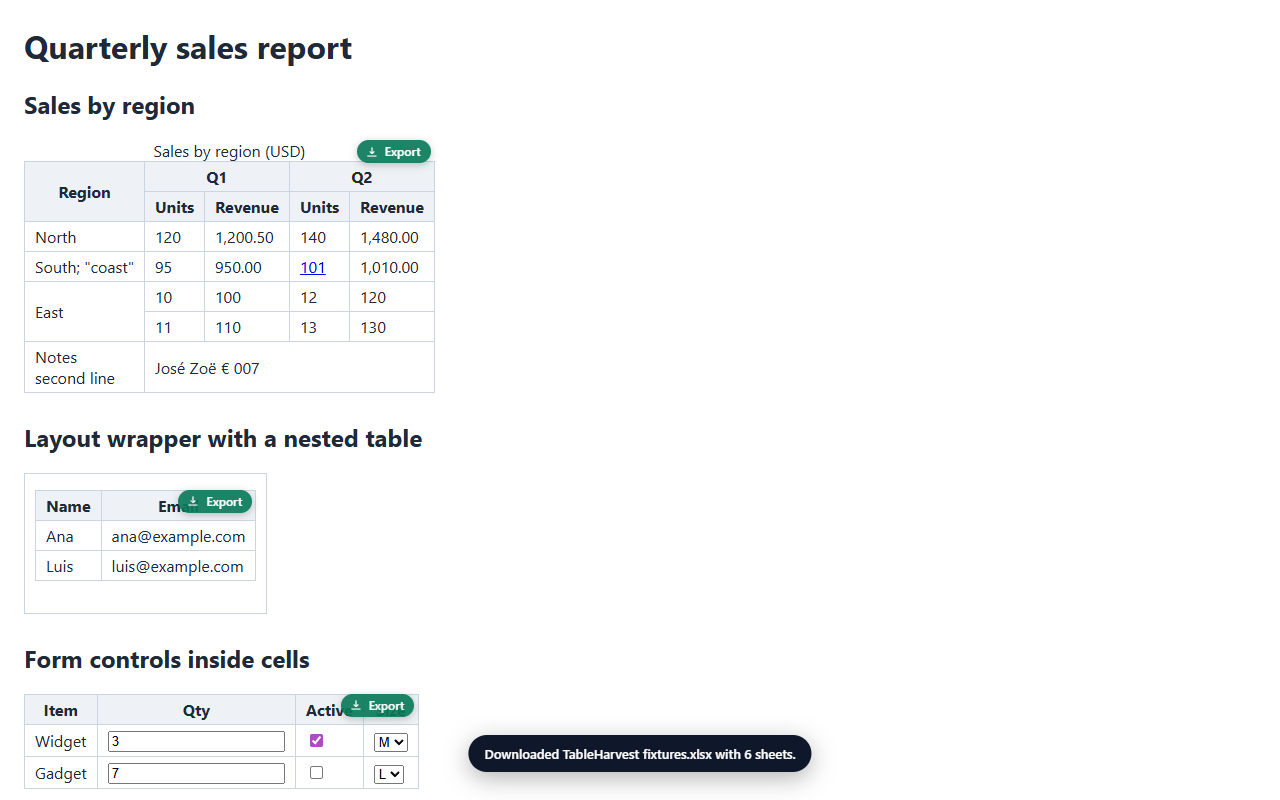
Rowspan and colspan are laid out correctly. Line breaks inside cells are kept. Form fields export their current value.
Preview first
See the exact rows and columns you will get. Header rows are detected automatically and can be overridden.
Private by design
Runs only when you click. No analytics, no accounts, no remote code. Read the privacy policy.
See it on real pages
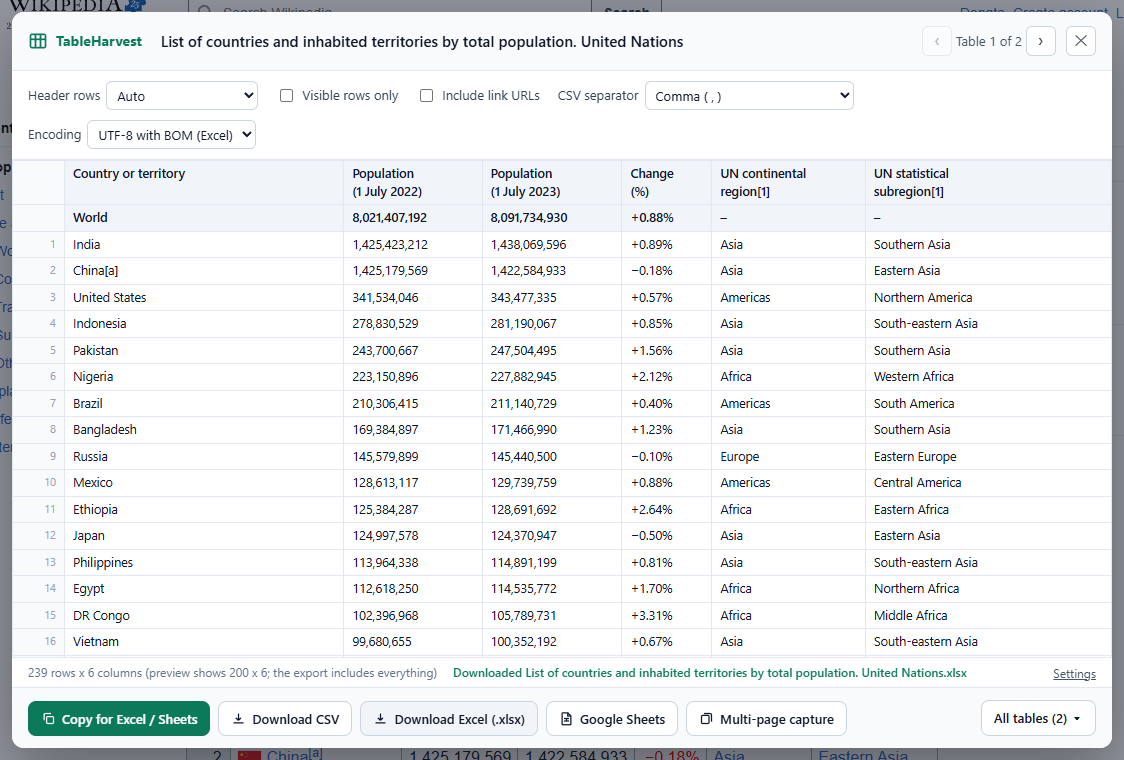
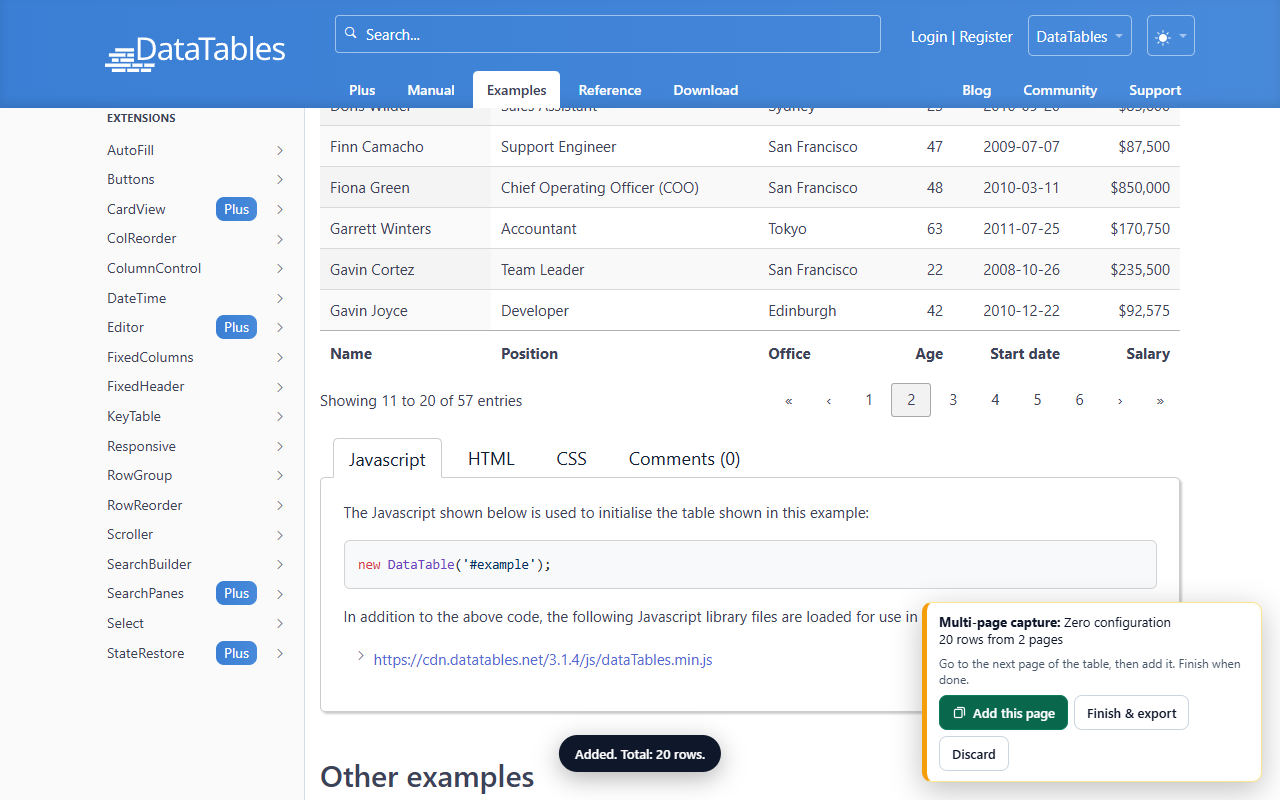
Wikipedia, admin panels, bank statements, data grids: if it looks like a table, it exports. Slide through the screenshots and click one to enlarge it.
Pricing
One license key for all your computers. Works offline. Payment and invoices handled by Polar, our merchant of record.
Free
- Copy to Excel / Google Sheets
- Download CSV, any separator and encoding
- Merged cells, data grids, frames
- Header detection and preview
- Excel (.xlsx) download
- All tables at once
- Multi-page capture
- Export to Google Sheets
Pro
- Everything in Free
- Excel (.xlsx) with frozen header and filters
- All tables on a page at once: one sheet per table
- Multi-page capture: paginated tables into one export
- Export to Google Sheets
- Up to 3 computers per key, works offline
- Priority support
Secure checkout by Polar (card, Apple Pay, Google Pay; VAT included where it applies). The license key arrives by email; paste it in the extension's Settings to activate. You can also start from the extension: Settings > TableHarvest Pro > Get Pro.
How to activate Pro
Your license key is in the email receipt from Polar (sender "HeroBytes"), sent to the address you used to buy.
- Open TableHarvest: click its icon in the toolbar, then Settings (or right-click the icon > Options).
- In the TableHarvest Pro section, paste the key and click Activate. Chrome may ask to allow a connection to api.polar.sh: that is the license check.
- The status turns to "Pro is active". The same key works on up to 3 computers; use Deactivate on a computer you no longer use to free its slot.
Lost the email? Search your inbox for "TableHarvest Pro", or write to sebas152000@gmail.com from the address you used to buy.
Questions
Does it send my data anywhere?
No. Tables are read and converted inside your browser. The only network request is the license check when you activate Pro. "Google Sheets" export copies the table and opens a new sheet for you to paste into. See the privacy policy.
My Excel is in Spanish, Portuguese or German. Will numbers work?
Yes. Each number is copied with its real value, so "1,425,423,212" is a number in any spreadsheet language, and you can pick the CSV separator your Excel expects.
A table does not export the way I expect.
Write to support with the page address. Tables that do not export are fixed in the next version.
Can I use one key on several computers?
Yes, up to three activations per key. Deactivate a computer from Settings to free a slot.
What happens if I stop paying?
The free features keep working forever. Pro features stop when the license expires; your exported files are yours.
Support
sebas152000@gmail.com. A real person answers, usually within one business day.